How to Create a Threads Account
Threads is Meta's text-based social platform built alongside Instagram. It's designed for sharing ideas, opinions, and joining public conversations. This guide walks you through every step of setting up your Threads account from scratch.
What you'll need
An Instagram account
This is required — Threads cannot be used without one
A smartphone (iPhone or Android)
You need the mobile app to create your account (you can use desktop after)
Important: Instagram account required
Threads is built on top of Instagram. You must have an Instagram account to use Threads — there is no way around this. If you don't have one yet, check out our Instagram setup guide first.
Follow these 6 steps
Download the Threads app
Open the App Store (if you have an iPhone) or the Google Play Store (if you have an Android phone). In the search bar at the top, type:
Look for the app made by Meta Platforms, Inc. — the icon is a stylized "@" symbol in black and white. Tap Get (iPhone) or Install (Android) and wait for it to download.
What you'll see: The app is small (under 100MB) and downloads quickly. Once installed, a Threads icon will appear on your home screen.
Log in with Instagram
Open the Threads app. On the first screen, you'll see a button that says "Log in with Instagram". Tap it.
If you're already logged into Instagram on this phone, Threads will automatically detect your account. You'll see your Instagram username and profile photo. Just tap your account to continue.
If you're not logged in, Threads will ask for your Instagram username and password. Enter them and tap Log in.
What you'll see: A screen showing your Instagram profile picture and username, confirming which account you're connecting to Threads.
Set up your Threads profile
Threads will suggest importing your profile photo, bio, and website link from Instagram. You have two options:
- Import from Instagram — Tap the import button to copy everything over instantly. This is the fastest option.
- Customize separately — You can edit each field manually. Your Threads bio does not have to match your Instagram bio. Many brands use a shorter, more casual bio on Threads.
When you're happy with your profile, tap Next or Continue.
What you'll see: Editable fields for your name, bio, and link, pre-filled with your Instagram information.
Save time across both platforms
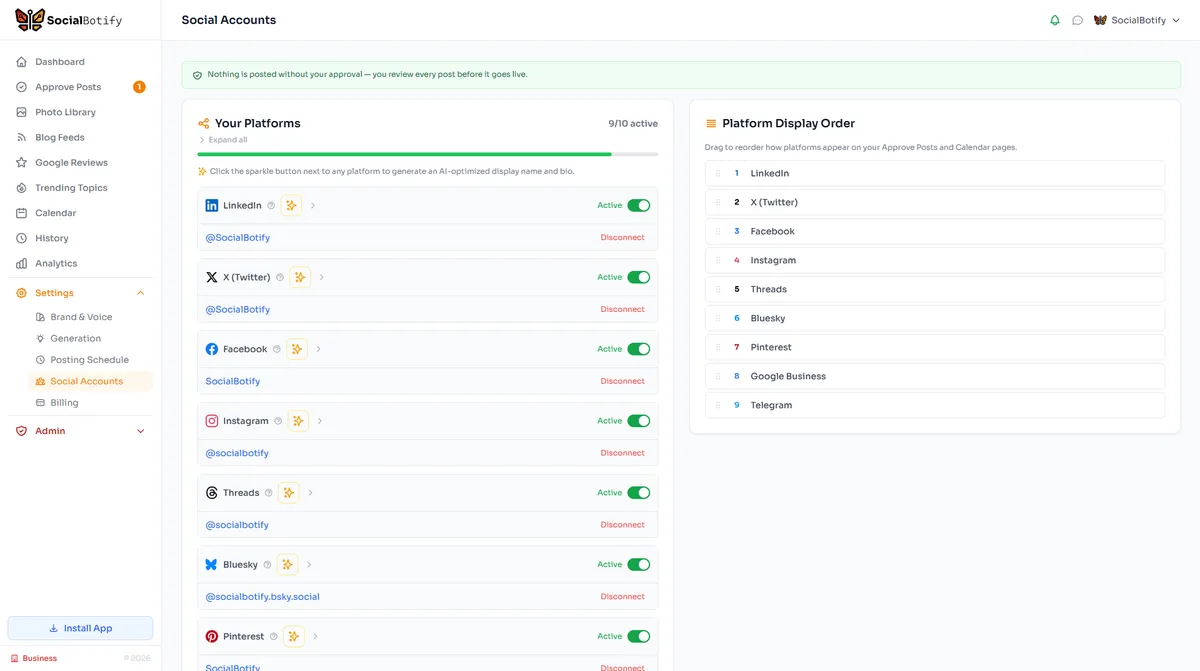
Setting up Threads takes under 5 minutes because it leverages your Instagram account. The real challenge is keeping both platforms active with fresh content. SocialBotify generates and publishes to both Instagram and Threads (plus 8 other platforms) automatically. Try it free for 7 days.
Choose your privacy setting
Threads will ask you to pick between two privacy options:
Public profile — Recommended for businesses
Anyone can see your posts, reply to them, and share them. Your content can appear in search results and recommendations.
Private profile
Only followers you approve can see your posts and interact with them. Not ideal for business visibility.
If you're using Threads for your business, choose Public. You want people to discover your content. You can always change this later in Settings.
Choose who to follow
Threads will show you a list of people you already follow on Instagram who are also on Threads. You have three options:
- Follow all — Tap "Follow all" to instantly follow everyone from your Instagram. This gives you an active feed right away.
- Select individually — Scroll through the list and tap "Follow" next to specific accounts you want to see content from.
- Skip — You can skip this entirely and follow people later. Your feed will show recommended content instead.
For business accounts, it's a good idea to follow industry peers, competitors, and thought leaders so you can see what content performs well on the platform.
You're in! Post your first thread
Your Threads account is now live. You'll land on your home feed where you can start scrolling, replying, and posting.
To create your first post, tap the compose button (pencil/paper icon) at the bottom of the screen. Write something to introduce yourself or your business. Here are a few ideas:
- "Hey Threads! We're [your business] and we help [audience] with [problem]. Excited to be here."
- Share a quick tip related to your industry
- Ask a question to spark conversation
What you'll see: Your main feed with content from people you follow and recommended posts. The compose button sits at the bottom center of the screen.
Optimize your Threads profile for growth
Your account is set up. Now let's make sure it's working hard for your brand.
Write a Threads-specific bio
Your Threads bio doesn't need to mirror your Instagram bio. Threads is more conversational, so write like you're talking to someone — not like a corporate tagline. Include what you do, who you help, and one personality-showing detail. Example: "Helping freelancers land clients without cold DMs. Coffee-fueled, spreadsheet-averse."
SocialBotify can write your Threads bio for you
SocialBotify generates a bio tailored to Threads' conversational tone and your brand voice. Go to Settings → Brand → Bio Generator to get a ready-to-use Threads bio with one-click copy.
Cross-promote with Instagram
Threads and Instagram are tightly linked. When you post on Threads, you can share it as an Instagram Story with one tap. Use this to drive your Instagram followers to Threads and vice versa. Mention in your Instagram bio that you're active on Threads, and let your Threads audience know about your visual content on Instagram.
The Fediverse — and what it means for you
Threads is joining the Fediverse — a network of decentralized social platforms (including Mastodon) that can talk to each other. In practice, this means your Threads posts can eventually be seen by users on other Fediverse platforms without them needing a Threads account. For businesses, this is bonus reach with zero extra work. You can enable Fediverse sharing in your Threads settings under "Fediverse sharing."
Content that works on Threads
Threads rewards a different content style than Instagram. Here's what performs well:
- Conversational posts — Write like you're texting a smart friend, not writing a press release
- Opinions and hot takes — People engage with perspectives, not generic advice
- Questions — Ask your audience something. "What's the worst business advice you've received?" gets way more replies than "5 tips for success"
- Short-form storytelling — Quick anecdotes from your business journey
- Behind-the-scenes — What's happening in your business right now, in plain language
Stay consistent without the effort
Threads is growing fast and the algorithm rewards early, consistent posters. SocialBotify creates conversational, engagement-focused posts that perform well on Threads — and cross-posts to your other platforms simultaneously. Start your free trial.
Frequently asked questions
Ready to start posting on Threads?
Let SocialBotify handle your Threads content. AI writes posts in your brand voice, you review them once a week, and they publish automatically. 5 minutes a week instead of 5 hours.
Start your free trial →7-day free trial · No credit card required · Cancel anytime