How to Create an Instagram Business Account
A complete, click-by-click walkthrough for setting up your Instagram Business Account from scratch. No technical experience needed — just follow along and you'll be up and running in about 15 minutes.
What you'll need before you start
An email address or phone number
Use a business email if you have one — it looks more professional and keeps things separate from your personal accounts.
Your business name
This will be your display name on your profile. Use your official business name so customers can find you.
A profile photo or logo
A square image works best (320×320 pixels recommended). Your logo is ideal — it helps people instantly recognize your brand.
A Facebook Page (optional)
If you want to cross-post to Facebook or run Instagram ads, you'll need a Facebook Page. You can connect it during setup or later.
10 steps to set up your Instagram Business Account
Follow each step in order. We've included exactly what to tap and what you'll see on screen.
Download the Instagram app
Open your phone and go to one of these app stores:
- iPhone users: Open the App Store (the blue icon with a white "A"). Search for "Instagram" and tap Get.
- Android users: Open the Google Play Store (the colorful triangle icon). Search for "Instagram" and tap Install.
- Computer users: Open your web browser and go to instagram.com. You can sign up right from the website.
Wait for the app to download and install. Once it's done, tap Open (or find the Instagram icon on your home screen and tap it).
Tap "Sign Up" and enter your details
On the welcome screen, tap Sign Up (or "Create new account"). Instagram will ask how you'd like to register:
- Email: Enter a business email address (like [email protected]). This keeps your business account separate from personal ones.
- Phone number: If you prefer, you can enter your mobile number instead. Instagram will text you a confirmation code.
Tap Next. Instagram will send you a confirmation code by email or text message. Check your inbox (or messages), find the 6-digit code, and type it in.
Create your username
Your username is your @handle — this is how people will find and tag you on Instagram (for example, @yourbusiness).
A few important rules and tips:
- No spaces allowed. Use underscores (_) or periods (.) instead. For example: @your_business or @your.business
- Keep it short and memorable. The shorter, the easier it is for people to remember and type.
- Match your other platforms. If you're @yourbusiness on Twitter/X, use the same name on Instagram. This makes it easy for customers to find you everywhere.
- Avoid random numbers. @yourbusiness is better than @yourbusiness12345. If your ideal name is taken, try adding your city or industry (like @yourbusiness_nyc).
Type in your username and tap Next. Instagram will tell you immediately if the name is available (green checkmark) or taken (red message).
Create a password and fill in your display name
Instagram will ask you to create a password. Make it strong:
- At least 6 characters (Instagram's minimum), but aim for 12 or more
- Mix letters, numbers, and symbols (like Br@nd2026!)
- Don't reuse a password from another account
Next, enter your full name. This is your display name — it appears in bold at the top of your profile. Use your official business name here (for example, "Sunrise Bakery" or "Smith Consulting Group").
Your display name is different from your username. People can search for either one, so use your real business name.
Tap Next to continue.
Add a profile photo
Instagram will prompt you to add a profile picture. Tap the circle (or "Add Photo" button) to upload an image.
- Use your business logo. This is what appears next to every comment and post you make, so it should be recognizable.
- Size: 320×320 pixels is the recommended size. Instagram displays it as a circle, so keep important details (like text) away from the edges.
- File type: JPG or PNG. Keep it under 5 MB.
You can choose a photo from your phone's gallery, take a new picture with your camera, or import from Facebook.
You can skip this for now and add a photo later, but we recommend doing it now — profiles without photos look incomplete and get fewer followers.
Skip "Find Friends" and "Suggested Follows"
Instagram will offer to search your phone contacts to find people you know, and then suggest popular accounts to follow.
Skip both of these for now. Here's why:
- Connecting your personal contacts to a business account can look unprofessional
- Following hundreds of random accounts dilutes your feed and makes your profile look spammy
- You can always find and follow relevant accounts later, when you've set up your business profile properly
Look for a "Skip" link (usually in the top-right corner or at the bottom of the screen) and tap it for each of these screens.

Your account is live!
Your Instagram account is live! The next steps will unlock business features like analytics and contact buttons. And once you're set up, SocialBotify can automatically generate and schedule Instagram posts in your brand voice — so your feed stays active without daily effort. Try it free for 7 days.
Switch to a Business Account
Now it's time to upgrade your personal account to a Business Account. This is the most important step — it unlocks analytics, contact buttons, and professional tools.
Here's the exact path to follow:
Let's walk through each tap:
- Tap your profile icon — it's in the bottom-right corner of the screen (a small circle with your photo or a person silhouette).
- Tap the hamburger menu (☰) — three horizontal lines in the top-right corner of your profile page.
- Tap "Settings and privacy" — it's usually the first option in the menu, with a gear icon.
- Scroll down and tap "Account type and tools" — this is under the "For professionals" section.
- Tap "Switch to professional account" — and then tap Continue on the info screens that follow.
Choose "Business" (not "Creator")
Instagram will ask you to pick between two types of professional accounts:
Business
Best for companies, brands, shops, and service providers. Includes contact buttons, ad tools, Instagram Shopping, and detailed analytics.
Creator
Best for influencers, artists, and public figures. Streamlined inbox and flexible profile controls, but fewer business tools.
Select "Business" and tap Next. The Business account type gives you everything you need to promote your brand, run ads, and track how your content performs.
Select your business category
Instagram will show a search field where you can type your business category. Start typing and suggestions will appear. For example:
- Marketing Agency — for marketing, PR, or advertising firms
- Restaurant — for food and beverage businesses
- Consulting Agency — for professional services
- Retail or Shopping & Retail — for online or physical stores
- Health/Beauty — for salons, spas, fitness studios
- Local Business — a catch-all if nothing else fits perfectly
Pick the category that best describes what you do. Don't worry about getting it exactly right — you can change this later.
You'll also see a toggle for "Display on profile". Turn this on if you want visitors to see your category (e.g., "Restaurant" will appear under your name). Turn it off if you prefer a cleaner look.
Add your contact info and connect Facebook
Instagram will ask for your business contact details. These create tappable buttons on your profile that let customers reach you directly:
- Business email: Customers tap "Email" and their email app opens with your address pre-filled.
- Phone number: Customers tap "Call" and their phone dials your number.
- Physical address: If you have a brick-and-mortar location, add your address so customers can tap "Directions" and get a map.
All three are optional but recommended — they make it much easier for potential customers to get in touch.
Finally, Instagram will offer to connect your Facebook Page. This lets you:
- Cross-post your Instagram content to Facebook automatically
- Run Instagram ads through Meta Ads Manager
- Manage both accounts from Meta Business Suite
If you have a Facebook Page, tap Connect and follow the prompts. If you don't have one (or don't want to connect it now), tap Skip. You can always do this later in your settings.
You're all set!
Your Instagram Business Account is ready. Now let's optimize your profile to attract followers and customers.
Optimize your Instagram Business profile
Your account is set up — now let's make it work harder for you. These tips will help you attract the right followers and convert visitors into customers.
Craft a bio that converts visitors into followers
Your Instagram bio has a 150-character limit, so every word counts. Here's a simple formula that works:
Line 2: What makes you different
Line 3: Call to action (what to do next)
Line break trick: Instagram doesn't show line breaks if you type them directly in the app. Instead, write your bio in your phone's Notes app with line breaks, then copy and paste it into Instagram. Or use a text editor on your computer at instagram.com.
Example: "Handmade candles for cozy homes
Free shipping on orders over $50
Shop our holiday collection below"
SocialBotify can write your Instagram bio for you
SocialBotify generates a bio optimized for Instagram's 150-character limit — with line breaks already formatted and a call to action tailored to your brand. Go to Settings → Brand → Bio Generator and copy it with one click.
Make the most of your one clickable link
Instagram only allows one clickable link in your bio (regular posts can't have clickable links). Here's how to make it count:
- Simple option: Link directly to your website, online store, or a landing page.
- Multi-link option: Use a free tool like Linktree, Beacons, or Later's Link in Bio to create a page with multiple links (your website, latest blog post, contact form, etc.).
- Change it regularly: Update your link when you have a new product, promotion, or piece of content you want to drive traffic to.
Use Story Highlights as a mini-website
Instagram Stories disappear after 24 hours, but Highlights stay pinned on your profile permanently. Use them like sections of a website:
- "About Us" — your story, mission, or behind-the-scenes
- "Products" or "Services" — showcase what you offer
- "Reviews" — screenshots of happy customer testimonials
- "FAQ" — answer common questions
- "Hours & Location" — for brick-and-mortar businesses
To create a Highlight: post a Story, then tap your profile, hold the "+" on Highlights, and pick stories to add. You can create custom cover icons using a free tool like Canva.
Plan your content pillars
Successful Instagram business accounts don't post randomly. They rotate through 3–5 content pillars (recurring themes). For example, a bakery might use:
Product photos
Behind the scenes
Customer stories
Think about what your audience wants to see and what showcases your business. Mix educational posts, behind-the-scenes content, customer testimonials, and promotional content.
Instagram image specs that matter
Using the right image sizes ensures your posts look crisp and aren't awkwardly cropped:
| Format | Dimensions | Aspect Ratio |
|---|---|---|
| Square post | 1080 × 1080 px | 1:1 |
| Portrait post | 1080 × 1350 px | 4:5 |
| Landscape post | 1080 × 566 px | 1.91:1 |
| Stories / Reels | 1080 × 1920 px | 9:16 |
| Profile photo | 320 × 320 px | 1:1 |
Pro tip: Portrait posts (1080×1350) take up more space in the feed and tend to get more engagement than square posts. Use portrait for your most important content.
Stay consistent without the daily grind
Instagram's algorithm favors accounts that post regularly. SocialBotify creates platform-optimized captions with the right hashtag strategy for your industry — tailored specifically for Instagram's audience. See how it works →
Frequently asked questions
Common questions about Instagram Business Accounts, answered.
Ready to start posting on Instagram?
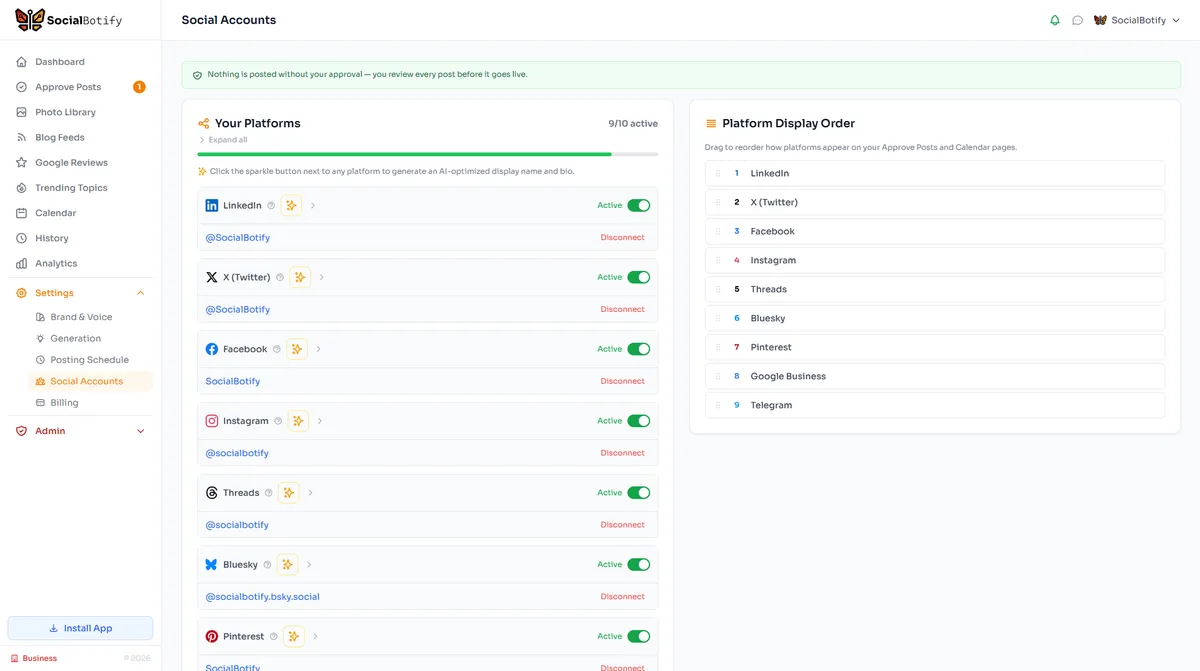
Let SocialBotify handle your Instagram content. AI writes posts in your brand voice, you review them once a week, and they publish automatically. 5 minutes a week instead of 5 hours.
Start your free trial →7-day free trial · No credit card required · Cancel anytime