How to Create an X (Twitter) Account
A complete beginner's guide to signing up for X (formerly Twitter). We'll walk you through every single click — from opening the website to publishing your first post.
Takes about 10 minutes
What you'll need before you start
An email address or phone number
For verification
Your name or business name
This becomes your display name
A profile photo ready to upload
Logo or headshot, 400x400 px
A short bio idea
160 characters max
Go to x.com and click "Create account"
Open any web browser (Chrome, Safari, Firefox, Edge — any will work) and type x.com into the address bar at the top. Press Enter.
If you still have twitter.com bookmarked, that works too — it automatically redirects to x.com.
You'll land on the X homepage. On the right-hand side, you'll see a large heading that says "Happening now" with options below it.
Click the blue "Create account" button. You can also sign up with your Google or Apple account if you prefer — this saves you a few steps, but we'll walk through the manual process here.
What you'll see:
A page split into two halves. The left side shows a large X logo. The right side has "Sign in" and "Create account" buttons, plus options to continue with Google or Apple.
Enter your name, email, and date of birth
A popup window will appear asking for three pieces of information:
Name — This is your display name (not your @username). For a personal account, use your real name. For a business, use your business name. You can change this later.
Email or phone number — Enter a valid email address you have access to, or click "Use phone instead" if you'd rather verify by text message.
Date of birth — X requires this to confirm you're old enough to use the platform (you must be at least 13). For a business account, you can use the business founding date or the account owner's date of birth. This won't be shown publicly.
Once all three fields are filled in, click the "Next" button at the bottom.
Customize your experience
X will show a screen asking: "Track where you see X content across the web." This controls whether X uses your browsing activity on other websites to personalize your ads and timeline.
This is entirely optional. If you value privacy, uncheck the box. If you don't mind personalized content, leave it checked. Either way, your account works exactly the same.
Click "Next" to continue.
Click "Sign up" and verify your identity
X will show you a summary of the information you entered: your name, email (or phone), and date of birth. Review it to make sure everything is correct.
Click the blue "Sign up" button.
X will now send a verification code to the email address or phone number you provided. This is a short numeric code (usually 5-6 digits).
If you used email: Open your email inbox and look for a message from X (or Twitter). Check your spam/junk folder if you don't see it within a minute or two.
If you used phone: You'll receive an SMS text message with the code.
Type the code into the verification field on the X screen and click "Next".
Create a strong password
Choose a password that is at least 8 characters long. X requires a minimum of 8 characters, but longer is better.
For a strong password, use a combination of:
Don't reuse a password you've used on other websites. If you have trouble remembering passwords, consider using a password manager like 1Password, Bitwarden, or your browser's built-in password saver.
Click "Next" after entering your password.

Your X account is live!
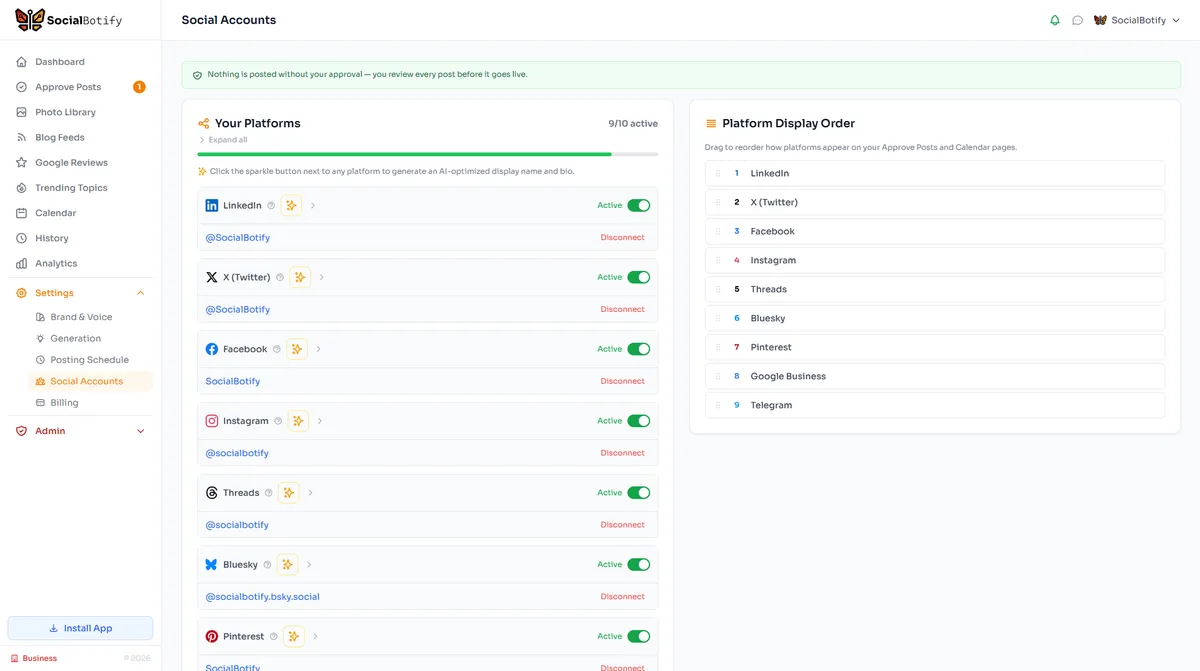
Now the question is: what do you post? SocialBotify generates on-brand posts for X and 9 other platforms — including the shorter, punchier style that works best on X. Try it free for 7 days.
Upload a profile picture
X will prompt you to add a profile picture. This image appears as a small circle next to every post, reply, and repost you make — so it's one of the first things people see.
Click the camera icon or the "Upload" area, then choose a file from your computer or phone.
What to use:
Recommended size
400 x 400 pixels (square). X will crop it into a circle automatically. JPG or PNG format. Maximum file size: 2 MB.
You can skip this step and add a photo later, but accounts with profile pictures get significantly more engagement than those with the default blank avatar.
Write your bio (160 characters max)
Your bio appears right below your name on your profile. It's a short description — just 160 characters — that tells visitors who you are and why they should follow you.
A great bio answers three questions:
Examples:
"Founder @ GreenBrew Coffee. Specialty roaster in Portland. Sharing the craft behind every cup."
"Marketing strategist helping small businesses grow online. Tips, tools, and real talk."
"We make sustainable packaging that doesn't cost the earth. Literally. shopgreen.com"
Type your bio and click "Next". Don't overthink it — you can always edit it later from your profile settings.
SocialBotify can write your X bio for you
SocialBotify generates an optimized bio within X's 160-character limit, tuned to your brand voice and the platform's search algorithm. Go to Settings → Brand → Bio Generator and copy your X bio with one click.
Choose your @username (your handle)
Your @username (also called your "handle") is how people find you, mention you, and link to your profile. It appears in your profile URL: x.com/YourUsername.
X will suggest a random username based on your name. You should replace it with something better. Here are the rules:
Good username examples:
Pro tip: Use the same handle across all your social media platforms (Instagram, LinkedIn, TikTok, etc.) so people can find you everywhere with one name.
If your preferred name is taken, try adding "HQ", "Co", "Official", or your location (e.g., @GreenBrewPDX). Click "Next" once you've chosen.
Congratulations — you're on X!
Your account is created and ready to go. X may walk you through a few optional setup screens (choosing topics, following suggested accounts). You can complete these or skip them for now. Below are tips to optimize your profile.
Optimize your X profile for maximum impact
Your account is live, but a few extra tweaks will make it look polished and professional. Here's what to do next.
Display name vs. @username — know the difference
Your display name is the bold text that appears on your profile (e.g., "GreenBrew Coffee"). Your @username is the handle below it (e.g., @GreenBrew). They don't have to match.
Many businesses use their full name as the display name and a shorter version as the handle. You can also add emojis or a tagline to your display name (e.g., "GreenBrew Coffee | Portland").
Add a header image (banner)
The header image is the wide banner across the top of your profile. It's prime real estate — use it to show off your brand personality.
Recommended size: 1500 x 500 pixels. Good options include: a photo of your product, your team, your storefront, a branded graphic with your tagline, or a lifestyle image that represents your brand.
To add it: Go to your profile, click "Edit profile", then click the camera icon on the banner area. Upload your image and drag to reposition if needed.
Pin your best post to the top
A "pinned post" stays at the top of your profile permanently (until you unpin it). It's the first post visitors see when they check out your profile.
Use it for: an introduction post ("Hi, I'm... and here's what I post about"), your best-performing post, a promotion, or a link to your website/product.
To pin: Click the three dots (...) on any of your posts, then select "Pin to your profile."
Add your website link
X gives you a dedicated website field on your profile — use it! This is the easiest way to drive traffic from your X audience to your website, shop, newsletter signup, or landing page.
To add it: Click "Edit profile", find the "Website" field, and paste your URL. It will appear as a clickable link on your profile.
Set your location
Adding a location (city, state, or country) helps local customers find you and gives your profile more context. It appears below your bio. If you serve customers nationwide or globally, you can put something creative like "Everywhere online" or "Shipping worldwide" instead of a city name.
Consider switching to a Professional Account
X offers a free "Professional Account" option that adds a category label beneath your name (like "Coffee Shop" or "Marketing Agency") and unlocks features like professional-specific analytics.
To switch: Go to Settings > Your Account > Switch to Professional. Choose a category that fits your business. This is free and different from X Premium (which is a paid subscription).
Stay active without the effort
X moves fast — accounts that post multiple times per week see significantly more engagement. SocialBotify keeps your X feed active with original content in your voice, even on your busiest days. Start your free trial.
Frequently asked questions
Quick answers to common questions about creating an X account.
Ready to start posting on X (Twitter)?
Let SocialBotify handle your X (Twitter) content. AI writes posts in your brand voice, you review them once a week, and they publish automatically. 5 minutes a week instead of 5 hours.
Start your free trial →7-day free trial · No credit card required · Cancel anytime