How to Create a Telegram Channel
Telegram channels are one-way broadcast tools — you post content, and your subscribers receive every single message. No algorithm filtering, no pay-to-reach. This guide walks you through creating one from scratch.
Takes about 10 minutes
What you'll need
Phone number
Telegram requires a phone number for account creation
Channel name idea
A name and username for your Telegram channel
Profile photo / logo
A branded image for your channel avatar
Channels vs. Groups — which one do you need?
Telegram has two main features for businesses: Channels (one-way broadcasting — you post, subscribers read) and Groups (two-way discussion where everyone can chat). For business content publishing, you want a Channel. This guide covers creating a Channel.
10 steps to create your Telegram channel
Download the Telegram app
Go to telegram.org and download Telegram for your device. Telegram is available on iOS, Android, Windows, Mac, Linux, and as a web app — so you can use it on virtually any device.
What you'll see: The Telegram website with download buttons for each platform. Tap the one that matches your device. On mobile, you'll be taken to the App Store or Google Play.
Open Telegram and enter your phone number
Launch Telegram after installing it. The app will ask you to select your country and enter your phone number. Make sure you have access to this phone — Telegram will send a one-time verification code via SMS.
What you'll see: A "Your Phone Number" screen with a country code dropdown and a field for your number. Enter your number and tap the arrow or "Next" to continue.
Enter the verification code
Check your SMS messages for the code from Telegram. Enter it in the app. If you already have Telegram installed on another device, the code may arrive as an in-app message instead of SMS.
What you'll see: A code entry screen with 5 blank boxes. The code usually arrives within a few seconds. If it doesn't arrive, tap "Resend code" after the timer expires.
Set your name
Enter your first name (required) and optionally your last name. For a business account, you can use your personal name or your business name — this is your Telegram profile name, not your channel name (we'll set that next).
What you'll see: A "Your Name" screen with first name and last name fields, plus an option to add a profile photo. You can always change these later in Settings.

Your Telegram account is ready!
Now let's create your Channel — this is where you'll broadcast content to your subscribers. And once your channel is live, SocialBotify can publish to it alongside your other platforms — all automatically. Start your free 7-day trial.
Create a new Channel
Tap the pencil / compose icon (bottom right on mobile, or the menu icon on desktop) and select "New Channel". Telegram will show a brief explanation of what channels are — tap "Create Channel" to continue.
What you'll see: On mobile, the compose button is the blue circle at the bottom-right corner of the chat list. On desktop, click the hamburger menu (three lines) at the top left, then "New Channel."
Enter your channel name and description
Type your channel name — this is the title that appears at the top and in search results. Then write a description explaining what your channel is about and why people should subscribe. Keep it clear and specific.
Good example: Name: "Acme Marketing Tips" / Description: "Daily marketing strategies, industry news, and growth tactics for small business owners. New posts every weekday."
Choose your channel type
Telegram will ask you to pick between two types:
Public Channel
Gets a t.me/YourChannel link. Anyone can search for and join it. Best for businesses.
Private Channel
Only accessible via invite link. Good for paid communities or internal teams.
For business content publishing, choose Public. This makes your channel discoverable and shareable.
Choose your channel username
Your username creates your permanent public link: t.me/YourUsername. This is what people will use to find and share your channel. Keep it short, professional, and memorable. Usernames can only contain letters, numbers, and underscores, with a minimum of 5 characters.
Tips: Match your brand name if possible. Avoid long strings of numbers. This can be changed later, but your old link will stop working — so pick something you're happy with.
Add a channel photo
Tap the camera icon on the channel creation screen (or in your channel settings afterward) and upload your logo or a branded image. This appears as the circular avatar next to your channel name everywhere in Telegram.
What you'll see: A circular crop tool to select the area of your image. Use a square image (at least 512x512 pixels) for the best result. Simple logos with readable text work best at small sizes.
Start posting!
Your channel is live. Your first message could be a welcome post introducing your channel and telling subscribers what kind of content to expect and how often. You can also add members by sharing your t.me/YourUsername link on your website, other social media, or email newsletter.
What you'll see: Your brand-new channel with a message input bar at the bottom. Type your first message and hit send — it goes out to all subscribers instantly.
Your Telegram channel is ready to go!
Optimize your Telegram channel
Your channel is created — now make it work harder for your business. These tips will help you grow your audience and keep subscribers engaged.
Pin important messages
Long-press (mobile) or right-click (desktop) any message and select "Pin." Pinned messages appear at the top of your channel and notify all subscribers. Use this for announcements, introductions, or your best content.
Write a strong description
Your channel description appears in search results and when someone visits your channel link. Include what you post about, how often, and who it's for. Add relevant keywords so people can find you through Telegram search.
Use your @username for cross-promotion
Share your t.me/YourUsername link on your website, email signature, and other social media profiles. You can also mention other channels with @ChannelName to build relationships in the Telegram ecosystem.
Schedule your posts
Telegram has built-in post scheduling: type a message, then long-press the send button and choose "Schedule Message." Pick a date and time, and Telegram will publish it automatically. Or let SocialBotify handle scheduling across all your platforms at once.
Add a discussion group
Link a Telegram Group to your Channel to enable comments. Go to Channel Settings → Discussion → create or select a group. Every channel post will automatically get a comments section in the linked group where subscribers can respond.
Check your analytics
Once your channel reaches 50+ subscribers, Telegram unlocks built-in analytics. Go to Channel Settings → Statistics to see subscriber growth, per-post views, shares, and engagement rates. Use this data to understand what content resonates most.
Near-100% delivery rates
Telegram channels have near-100% delivery rates — unlike social media feeds where algorithms filter your content, every subscriber sees every post. SocialBotify publishes your content to Telegram alongside all your other platforms, ensuring your most dedicated audience never misses an update. Try it free for 7 days.
Frequently asked questions
Ready to start posting on Telegram?
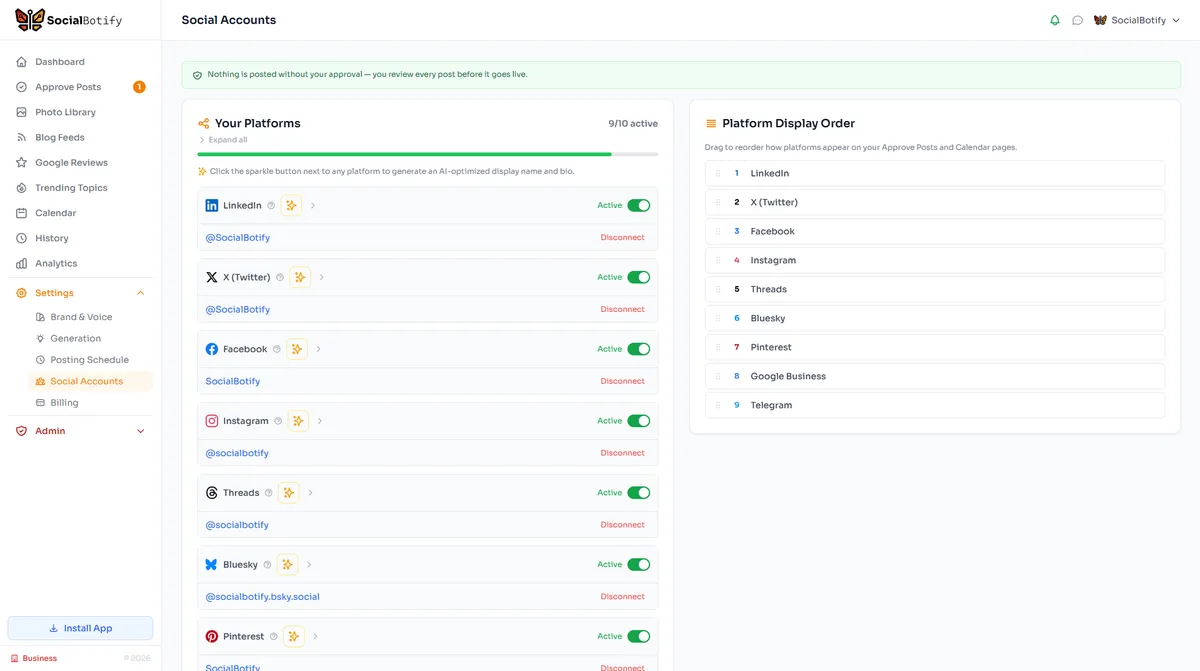
Let SocialBotify handle your Telegram content. AI writes posts in your brand voice, you review them once a week, and they publish automatically. 5 minutes a week instead of 5 hours.
Start your free trial →7-day free trial · No credit card required · Cancel anytime