How to Create a LinkedIn Business Page
A step-by-step guide for complete beginners. We'll walk you through every single click — from creating your LinkedIn account to publishing your first business post.
What you'll need before you start
Gather these items first so you can complete the setup in one sitting.
An email address
Use your business email if you have one. A personal email like Gmail works too.
A personal LinkedIn account (or willingness to create one)
LinkedIn requires a personal profile to manage a Company Page. We'll create one in steps 1-5 if you don't have one yet.
Your business name
The exact name you want to appear on your LinkedIn page. Use your registered or trading name.
A company logo (recommended)
Square format, at least 300 x 300 pixels. PNG or JPG. If you don't have one, you can add it later.
Your website URL (if you have one)
Your business website address, e.g. www.yourbusiness.com. Not required, but looks more professional.
Go to LinkedIn and click "Join now"
Open your web browser (Chrome, Firefox, Safari, or Edge all work) and go to linkedin.com. You'll see LinkedIn's homepage with a sign-in form and a prominent "Join now" button.
If you already have a LinkedIn account: Click "Sign in" instead, enter your email and password, and skip ahead to Step 6.
If you're brand new to LinkedIn: Click the "Join now" button. It's the large button, usually below the sign-in fields. This will take you to the registration page.
Fill in your name, email, and create a password
On the registration page, you'll need to enter four pieces of information:
- Email address — Use a real email you can access. Business email is ideal, but Gmail/Outlook works fine.
- Password — Create a strong password with at least 8 characters. Mix letters, numbers, and symbols.
- First name — Your real first name (LinkedIn requires real names, not business names).
- Last name — Your real last name.
Click "Agree & Join" when you're done. By clicking this, you agree to LinkedIn's User Agreement and Privacy Policy.
Verify your email address
LinkedIn will send a verification code to the email address you just entered. Open your email inbox in a new browser tab and look for an email from LinkedIn with the subject line like "Confirm your email" or "Your verification code."
The email contains a 6-digit verification code. Copy this number, go back to the LinkedIn tab, and paste or type it into the verification field. Click "Verify" or "Submit".
Add your location and current job title
LinkedIn will ask you a few questions to set up your personal profile. These are required before you can create a Company Page.
- Country/Region — Select your country from the dropdown list.
- City — Start typing your city name and pick it from the suggestions that appear.
- Most recent job title — Enter your current role. If you're a business owner, you can put "Founder," "Owner," "CEO," or whatever title you use.
- Most recent company — Type your business name. If LinkedIn doesn't suggest it (because you haven't created the page yet), that's fine — just type it in manually.
Click "Continue" or "Next" to proceed.
Skip "find people you know" and complete your profile basics
LinkedIn will try to help you find people you know — it may ask to access your email contacts or suggest people to connect with. You can skip all of this for now by clicking "Skip" or "Not now" on each screen.
LinkedIn may also prompt you to:
- Upload a profile photo — Optional right now, but recommended. A headshot helps build trust. You can use your phone to snap a quick photo.
- Choose topics you're interested in — Skip this or pick a few that relate to your industry.
- Download the mobile app — Skip unless you want it now.
Keep clicking "Skip" or "Next" until you reach the main LinkedIn feed — a page that looks like a social media timeline with posts.
Click "For Business" and select "Create a Company Page"
Look at the top-right corner of the LinkedIn navigation bar. You'll see a small grid icon (nine dots arranged in a square) with the text "For Business" underneath it.
Click that icon. A dropdown menu will appear showing LinkedIn's business products like LinkedIn Learning, Talent Solutions, Sales Solutions, and more. Scroll down to the very bottom of this dropdown menu and look for the link that says "Create a Company Page +". Click it.
Alternative method: You can also go directly to linkedin.com/company/setup/new/ in your browser's address bar.

You're halfway there — and the hardest part is ahead (but not what you think)
Now that you have a LinkedIn presence, the hardest part isn't setup — it's showing up consistently. SocialBotify generates professional thought-leadership posts in your brand voice and schedules them automatically. Your first 7 days are free.
Choose your page type
LinkedIn will show you four options for the type of page you want to create. Each one is displayed as a card with an icon and description:
Small business
Under 200 employees. This is what most users should pick. If you're a freelancer, solo entrepreneur, startup, local shop, or small agency — choose this.
Medium to large business
200+ employees. Choose this if you're a larger corporation.
Showcase page
A sub-page linked to an existing Company Page. Used for separate brands, products, or initiatives. Skip this for now.
Educational institution
For schools, universities, and training organizations. Pick this only if you run an educational institution.
Click the card that matches your business. For most readers of this guide, that's "Small business."
Fill in your company details
Now you'll see a form with several fields to fill out. Here's what each one means:
- Name — Your official business name. This is what people will see when they visit your page or find you in search. Use the same name you use on your website and other social media accounts.
- LinkedIn public URL — This auto-generates based on your company name (e.g., linkedin.com/company/your-business-name). You can customize it, but choose carefully — this is very difficult to change later. Keep it short, simple, and matching your business name. Use hyphens instead of spaces. Avoid numbers if possible.
- Website — Enter your full website URL including "https://" (e.g., https://www.yourbusiness.com). If you don't have a website yet, you can leave this blank and add it later.
Add your industry, company size, and company type
Continue filling out the form with these details:
- Industry — Start typing your industry and select the closest match from LinkedIn's dropdown suggestions. For example: "Marketing and Advertising," "Information Technology," "Food & Beverages," "Health, Wellness and Fitness." Pick the one that best describes what your business does.
- Company size — Select the range that matches your team: 0-1, 2-10, 11-50, 51-200, and so on. If it's just you, pick "0-1 employees."
- Company type — Choose from options like:
- Privately Held — Most small businesses. Not publicly traded on a stock exchange.
- Self-Employed — Freelancers and solo operators.
- Public Company — Listed on a stock exchange.
- Nonprofit — Charitable organizations.
- Partnership — Two or more owners.
Upload your logo and write a tagline
Next, LinkedIn asks for your company's visual identity:
- Logo — Click the logo area and upload a square image. LinkedIn recommends 300 x 300 pixels. Accepted file types are PNG, JPG, or GIF. Your logo appears next to your company name everywhere on LinkedIn — in search results, on posts, and in people's feeds. Make sure it looks clear at small sizes.
- Tagline — Write a short description of what your business does, up to 120 characters. This appears directly under your company name on your page. Think of it as your elevator pitch in one sentence.
Examples: "Helping small businesses grow with digital marketing" or "Handcrafted furniture built to last generations" or "AI-powered social media management for busy professionals."
Click "Create page" and customize it
Before clicking the button, you'll need to check a box confirming that you have the right to act on behalf of this company. Check the box and click "Create page."
Congratulations — your LinkedIn Company Page now exists! But it's not done yet. LinkedIn will take you to your new page and show you a setup wizard with suggested next steps. Here's what to do:
- Add a banner/cover image — Click the large empty area at the top of your page. Upload a horizontal image that's 1128 x 191 pixels. This is the wide banner that spans the top of your page. Use a photo of your team, workspace, product, or a simple branded graphic with your colors and tagline.
- Write your About section — Click "Edit" on your page (pencil icon), then find the "About" or "Description" field. You get up to 2,000 characters. Include:
- What your business does (in plain language)
- Who your customers are
- What makes you different
- Your mission or values
- A call to action (visit your website, contact you, etc.)
- Add specialties — These are keywords that describe your expertise. Add 5-20 relevant terms, like "content marketing," "web design," "organic food," etc. This helps people find you when searching LinkedIn.
- Set your location — Add your business address or just your city. This helps local customers find you.
Make your first post to activate your page
Your page is set up, but it's empty. LinkedIn (and its algorithm) rewards pages that are active, so make your first post right away. On your Company Page, you'll see a text box that says "Start a post" at the top. Click it.
Here are some ideas for your first post:
- Introduce your business — "We're excited to be on LinkedIn! Here's what we do and why we do it..."
- Share your mission — Tell people why your business exists and what problem you solve.
- Post a useful tip — Share a quick insight relevant to your industry. This shows expertise and gives people a reason to follow you.
- Behind-the-scenes — Show a photo of your team, workspace, or product in the making.
Write your post, optionally attach an image (posts with images get 2x more engagement), and click "Post." Your Company Page is now live and active.
Go further
Optimize your LinkedIn page for maximum visibility
Your page is live. Now let's make it stand out. These optimizations can significantly increase how many people find and follow your business.
Customize your public URL
If you didn't customize your URL during setup, go to your page's admin settings and update it. A clean URL like linkedin.com/company/your-business looks far more professional than one with random numbers. Use this custom URL on your business cards, email signature, and website. Keep it lowercase, use hyphens for spaces, and match your brand name exactly.
Get your banner image right
Your banner image (1128 x 191 pixels) is the first thing visitors see. Make it count. Do: Use your brand colors, include a short tagline or value proposition, show your product or team. Don't: Use blurry or stretched images, cram too much text in, or use a generic stock photo. Tools like Canva have free LinkedIn banner templates you can customize in minutes. Update your banner seasonally or when you have big announcements.
Write a compelling About section
Your About section is your chance to tell visitors exactly what you do and why they should care. Structure it like this: Start with a hook that addresses your customer's problem. Then explain what you do and how you solve that problem. Mention who you serve (your target audience). Include 2-3 concrete achievements or differentiators. End with a call to action. Use short paragraphs — LinkedIn's About section is read on mobile where walls of text feel overwhelming. Include relevant keywords naturally (like your industry terms) so your page appears in LinkedIn searches.
SocialBotify can write your LinkedIn About section for you
SocialBotify generates a keyword-optimized LinkedIn About section up to 2,000 characters, structured to attract your ideal customers. Go to Settings → Brand → Bio Generator and copy your LinkedIn bio with one click.
Use Featured content
LinkedIn lets you "feature" posts, articles, links, or documents at the top of your page. Use this to highlight your best content — a popular blog post, a customer case study, a product demo video, or a company announcement. Featured content stays pinned at the top even as you publish new posts, making it the first thing new visitors see after your About section. Update your featured content monthly to keep it fresh.
Add specialties and hashtags
Specialties appear on your page and help LinkedIn understand what your business is about. Add 10-20 relevant keywords covering your services, industry, and expertise areas. Think about what your ideal customer would search for. In addition, follow 3-5 industry hashtags from your page — this signals to LinkedIn's algorithm what topics are relevant to your brand and can help your content appear in hashtag feeds.
Consistency is the real growth hack
LinkedIn's algorithm rewards accounts that post consistently. Businesses that post weekly get 5.6x more followers than those that post monthly. SocialBotify keeps your page active even when you're too busy to think about content. AI generates professional posts in your brand voice, and you just approve them once a week.
Frequently asked questions
Common questions about LinkedIn Business Pages, answered in plain language.
Yes, creating and maintaining a LinkedIn Company Page is completely free. You can post updates, share content, build a following, and interact with your audience without paying anything. LinkedIn does offer paid products like LinkedIn Ads (for running sponsored posts), Sales Navigator (for finding sales leads), and LinkedIn Premium (for enhanced personal profile features) — but none of these are required. The free Company Page gives you everything you need to establish and grow your professional online presence.
No, LinkedIn requires you to have a personal account before you can create a Company Page. Your personal profile serves as the admin account that manages your business page. Don't worry about this — your personal profile and your Company Page are separate. Your customers and followers won't see your personal connections, messages, or activity unless you choose to share it. Your personal profile doesn't need to be extensively filled out; you just need a basic account with your real name and a verified email address. If privacy is a concern, you can adjust your personal profile's visibility settings to show minimal information.
A personal profile represents you as an individual — it shows your work history, skills, education, and connections. You use it to network, job hunt, and share your professional thoughts. A LinkedIn Page (also called a Company Page) represents your business or organization. It can have multiple admins, displays company information like industry, size, and specialties, and people "follow" it rather than "connect" with it. When you post from your Company Page, it appears with your business name and logo. Think of it like the difference between your personal Facebook profile and a Facebook Business Page — both are useful, but they serve different purposes. Most business owners actively use both: a personal profile for thought leadership and networking, and a Company Page for official company updates and brand building.
LinkedIn officially recommends posting at least once per week for Company Pages. Research shows that companies posting weekly get 5.6x more followers than those that post monthly. For the best results, aim for 3 to 5 posts per week, mixing different content types: industry insights, company news, helpful tips, engaging questions, and behind-the-scenes content. That said, consistency matters more than frequency. It's far better to post twice a week every week than to post daily for one week and then disappear for a month. If creating content consistently feels overwhelming, tools like SocialBotify can generate and schedule posts for you automatically — so your page stays active even during your busiest weeks.
Yes, you can add multiple admins to your LinkedIn Company Page, and it's strongly recommended. To add an admin, go to your page, click "Admin tools" at the top, then select "Manage admins." Search for the person's LinkedIn profile and choose their role. LinkedIn offers several admin roles: Super admin (full control over everything), Content admin (can create and manage posts and events), Curator (can recommend content for employees to share), and Analyst (can view page analytics only). It's a best practice to have at least two Super admins — if one person leaves your company or loses access to their LinkedIn account, the other can still manage the page. Without a second admin, you could permanently lose access to your Company Page.
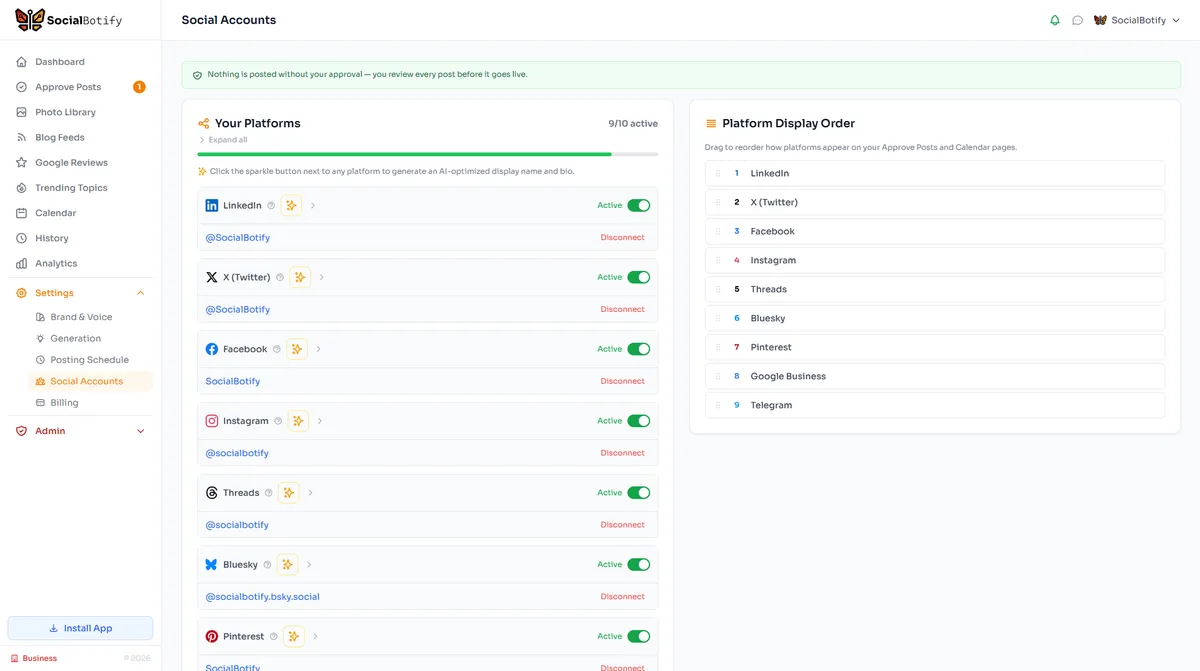
Ready to start posting on LinkedIn?
Let SocialBotify handle your LinkedIn content. AI writes posts in your brand voice, you review them once a week, and they publish automatically. 5 minutes a week instead of 5 hours.
Start your free trial →7-day free trial · No credit card required · Cancel anytime