Step-by-Step Guide
How to Create a Google Business Profile
Your Google Business Profile is how your business appears on Google Search and Google Maps. When someone searches for your business name or services like yours nearby, this is what they see. This guide walks you through every step of creating and optimizing yours.

What you'll need before you start
Important: Verification is required
Google will need to verify that you own this business. This can take anywhere from a few minutes (phone/email verification) to 2 weeks (postcard verification). Don't worry — you can still edit your profile while waiting for verification.
Follow these 12 steps
1 Go to Google Business Profile Manager
Open your web browser and go to business.google.com. Sign in with your Google account (the same one you use for Gmail, YouTube, or Google Drive).
If you don't have a Google account yet, click "Create account" on the sign-in page, or go directly to accounts.google.com/signup. You'll need to provide your name, create a username (which becomes your @gmail.com email), and set a password.
2 Click "Manage now" or "Add your business"
Click the "Manage now" button to begin the setup process. If you've previously managed a business profile with this Google account, you may instead see an option that says "Add your business to Google" — click that instead.
3 Enter your business name
Type your business name exactly as you want it to appear on Google. Use your real business name — don't stuff keywords in here (e.g., "Joe's Plumbing" is correct, "Joe's Plumbing Best Plumber in Chicago" will get flagged by Google).
As you type, Google may show suggestions. If your business already appears in the list, it means someone (possibly Google) has already created a listing for it. Click on the existing listing to claim it rather than creating a duplicate. Duplicate listings can hurt your visibility.
4 Choose your business category
Start typing what your business does and Google will show you matching categories. Pick the most specific option that fits. For example, "Italian Restaurant" is better than just "Restaurant," and "Personal Injury Attorney" is better than "Lawyer."
This is critical for appearing in the right searches. Your primary category is the single biggest factor in which searches your business shows up for. You can add secondary categories later, but get the primary one right now.
5 Choose whether customers visit your location
Google will ask: "Do you want to add a location customers can visit, like a store or office?"
Select "Yes" if you have a physical location that customers come to — a store, office, restaurant, salon, etc. Your address will be shown on Google Maps and people can get directions to you.
Select "No" if you're a service-area business that goes to customers — a plumber, landscaper, mobile dog groomer, consultant who visits clients, etc. Your address won't be shown publicly, but you'll define the area you serve.
6 Enter your business address or service area
If you selected "Yes" in Step 5: Enter your full street address including suite or unit number. This is the address that will appear on Google Maps. Make sure it's accurate — Google may verify this address with a postcard.
If you selected "No" in Step 5: Enter the city, region, or areas you serve. You can add multiple service areas. For example, you might add "Chicago, IL" and "Evanston, IL" if you serve both cities. You can also set a radius (e.g., "20 miles around Chicago").
7 Enter your phone number and website
Add your business phone number — this is the number customers will see and call from Google Search and Maps. Use your main business line, not a personal number if possible.
Add your website URL if you have one. If you don't have a website yet, you can skip this and add it later. Google will also offer to create a free basic website for you based on your profile information.
8 Choose a verification method
Google needs to confirm you actually own or manage this business. They'll offer one or more verification methods depending on your business type:
9 Start filling in your profile details
While waiting for verification (especially if you chose postcard), start building out your profile. Click "Edit profile" from your Business Profile dashboard to add details.
You can edit your profile even before verification is complete. The more information you add now, the faster your profile will be ready to attract customers once verified. Fill in everything you can: business description, services, attributes, and more.

Your Google Business Profile is taking shape!
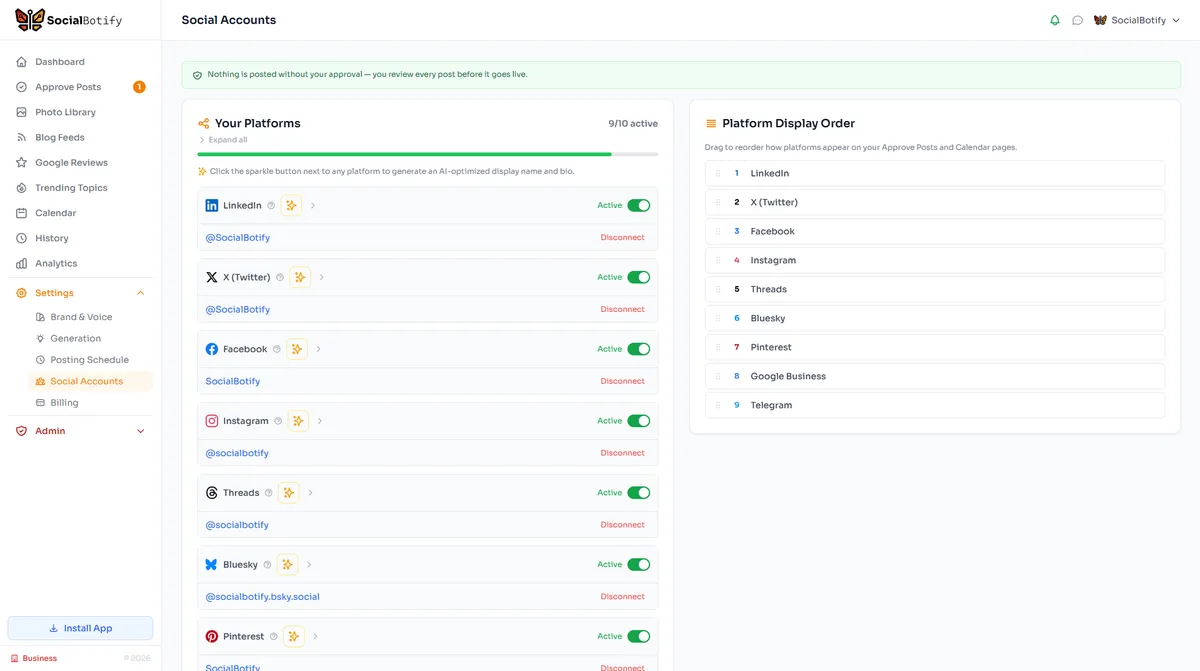
Posts on your Google Business Profile appear directly in Google Search and Google Maps results — that's prime real estate that most businesses aren't using. SocialBotify automatically publishes posts to your Google Business Profile alongside your other platforms, keeping your listing fresh and active with zero extra effort. Try it free for 7 days.
10 Set your business hours
Click on "Hours" in your profile editor and set your regular hours for each day of the week. Toggle each day on or off, and set your opening and closing times.
If you have a lunch break or split hours (e.g., 9 AM - 12 PM and 1 PM - 5 PM), you can add multiple time slots per day. You can also add special hours for holidays like Christmas, Thanksgiving, or any day where your hours differ from normal. Keeping these accurate prevents frustrated customers showing up when you're closed.
11 Add photos of your business
Photos are one of the most important parts of your profile. Businesses with photos receive 42% more requests for directions and 35% more clicks to their website than businesses without. Upload at least 3-5 high-quality photos:
12 Write your business description
You have 750 characters to describe your business. This description appears in your Google Business Profile when people find you on Search or Maps. Make it count.
Do: Describe what you do, who you serve, what makes you unique, your history, and include relevant keywords naturally. Write in a friendly, conversational tone.
Don't: Stuff keywords unnaturally, include URLs or links (Google will reject your description), add promotional content like "50% off sale!", or use ALL CAPS.
Once Google verifies your business, your profile will go live on Google Search and Maps. Now let's optimize it to get the best results.
Optimize your profile for maximum visibility
Creating your profile is just the beginning. These optimizations will help you rank higher in Google Maps and attract more customers.
Add Business Attributes
Add attributes like wheelchair accessible, free wifi, outdoor seating, women-owned, veteran-owned, and more. These appear as badges on your profile and help customers filter search results.
Respond to Reviews
Reply to every review — positive and negative. Thank happy customers by name and address complaints professionally. Google has confirmed that responding to reviews improves your local ranking.
Use Google Posts
Publish updates, offers, events, and news directly to your profile. These posts appear in Google Search and Maps results. Post at least once a week to signal to Google that your business is active.
Monitor the Q&A Section
Anyone can ask (and answer) questions on your profile. Check regularly and answer questions yourself before random strangers answer them incorrectly. You can also seed common questions and answer them proactively.
Add Products or Services
List your products or services with photos, descriptions, and prices. This helps customers understand what you offer before they even visit your website and gives Google more information to match you with relevant searches.
Check Insights & Analytics
Google provides free analytics showing how customers find you, what searches they use, how many people called you, requested directions, or visited your website. Use these insights monthly to understand what's working and adjust your strategy.
Keep your Google Business Profile active automatically
Google Business Profile posts appear directly in Search and Maps — and businesses that post weekly get significantly more engagement than those that don't. But most business owners forget to post regularly. SocialBotify keeps your GBP active with fresh, AI-generated posts that match your brand voice, improving your local SEO ranking automatically while you focus on running your business. Start your free trial.
Frequently asked questions
Ready to start posting on Google Business?
Let SocialBotify handle your Google Business content. AI writes posts in your brand voice, you review them once a week, and they publish automatically. 5 minutes a week instead of 5 hours.
Start your free trial →7-day free trial · No credit card required · Cancel anytime