How to Create a Facebook Business Page
A complete, click-by-click guide to setting up your Facebook Business Page from scratch. No technical experience needed — we walk you through every single step.

What you'll need before you start
A personal Facebook account
Or an email address to create one (we cover this in Step 1-2)
Your business name
The name customers know you by — this will be your Page name
A logo or profile image
At least 170 x 170 pixels. PNG or JPG format works.
A cover photo
A wide banner image, ideally 820 x 312 pixels. A product photo, team photo, or branded graphic all work well.
Basic business information
Your website URL, phone number, email, physical address (if applicable), and hours of operation
Important: You need a personal Facebook account
Facebook requires a personal account to create and manage a Business Page. Your personal profile won't be visible on the Page — it just serves as the admin login. Think of it like a key that unlocks the door to your business's Page. Visitors to your Business Page will only ever see the business information you choose to add.
Step 1: Go to facebook.com
Open your web browser (Chrome, Safari, Firefox, Edge — any will work) and type facebook.com in the address bar at the top of the screen. Press Enter.
You'll land on the Facebook homepage. There are two paths from here:
- If you already have a personal Facebook account: Type your email (or phone number) and password into the fields at the top of the page, then click Log In.
- If you don't have a Facebook account yet: Click the green "Create new account" button. We'll walk you through that in the next step.
What you'll see: The Facebook login page with email/password fields and a "Create new account" button.
Step 2: Create a personal account (if you don't have one)
If you clicked "Create new account," a signup form will appear. Fill in each field:
- First name and last name — Use your real name. This is for your personal account (it won't show on your Business Page).
- Email or mobile number — Use an email address you check regularly. Facebook will send a confirmation code here.
- New password — Pick something strong. Mix letters, numbers, and a special character.
- Birthday — Required by Facebook. It won't be shown publicly.
- Gender — Select an option or choose "Custom" for more choices.
Click "Sign Up."
Facebook will send a verification code to the email or phone number you entered. Open your email, find the code, and enter it on Facebook to confirm your account.
What you'll see: A signup modal with fields for name, email, password, birthday, and gender, followed by a verification screen.
Already have an account? Skip this step — you should already be logged in from Step 1.
Step 3: Open the Pages section
Now that you're logged in, look at the top-right corner of the screen. You'll see a grid icon that looks like 9 small dots arranged in a square (sometimes called the "waffle" menu). Click it.
A dropdown menu will appear with various Facebook features. Look for the word "Page" — it usually has a small orange flag icon next to it. Click on it.
If you don't see "Page" right away, scroll down in the menu. You can also type "Page" in the search bar at the top of the dropdown.
What you'll see: A 3x3 grid icon in the top bar that opens a dropdown menu with various Facebook tools and features.
Step 4: Click "Create New Page"
After clicking "Page" in the menu, you'll be taken to the Pages management area. Look for a prominent "Create New Page" button — it's typically displayed as a large, easy-to-find button.
Click it to start the Page creation wizard. Facebook will walk you through the basic information in a step-by-step panel on the left side of the screen, with a live preview of your Page on the right.
What you'll see: A split screen — a form on the left where you enter your Page details, and a live preview on the right showing how your Page will look.
Step 5: Enter your Page name
In the "Page name" field, type the name of your business. This is the name that will appear at the top of your Facebook Business Page and in search results.
Tips for choosing a good Page name:
- Use your actual business name — the one your customers already know.
- Keep it clean and simple. Avoid unnecessary symbols, ALL CAPS, or marketing slogans.
- Make it searchable. If someone Googles your business, this name should match.
- Don't add "Facebook" to the name (e.g., "Joe's Pizza" not "Joe's Pizza Facebook Page").
You can change this name later, but it's best to get it right the first time since name changes require review by Facebook.
Step 6: Choose a category
In the "Category" field, start typing a word that describes your industry or business type. Facebook will show a dropdown list of matching categories.
Examples:
- If you run a bakery, type "Bakery" and select it.
- If you're a marketing consultant, type "Marketing" and you'll see options like "Marketing Agency," "Marketing Consultant," etc.
- If you're a photographer, type "Photo" and select "Photographer."
- If you run a restaurant, type "Restaurant" and pick the most specific type (e.g., "Italian Restaurant").
You can select up to 3 categories. Pick the most specific and relevant ones — this is very important because it helps Facebook show your Page to people searching for businesses like yours.
What you'll see: A text field with a dropdown of suggested categories that appears as you type.
Step 7: Write your bio / description
In the "Bio" field, write a short description of your business. You have a maximum of 255 characters, so keep it concise.
Your bio should answer two questions:
- Who are you? (e.g., "Family-owned bakery in downtown Austin")
- What do you do? (e.g., "Freshly baked artisan breads, pastries, and custom cakes since 2015")
Good examples:
- "Digital marketing agency helping small businesses grow online. Strategy, social media, and SEO."
- "Handmade jewelry crafted from recycled materials. Based in Portland. Shop online or visit our studio."
- "Your neighborhood coffee shop. Specialty lattes, fresh pastries, and free WiFi. Open 7 days."
Don't stress about making it perfect — you can edit this anytime later.
Step 8: Click "Create Page"
Review the information you've entered — your Page name, category, and bio. When everything looks good, click the "Create Page" button.
That's it — your Facebook Business Page is now live!
But hold on: a freshly created Page is pretty bare. It has no profile picture, no cover photo, and no posts. In the next steps, we'll fill in all the details that make your Page look professional and trustworthy.
What you'll see: Your new Page appears with placeholder images and a prompt to complete your profile setup.

Your Page is live — now keep it active
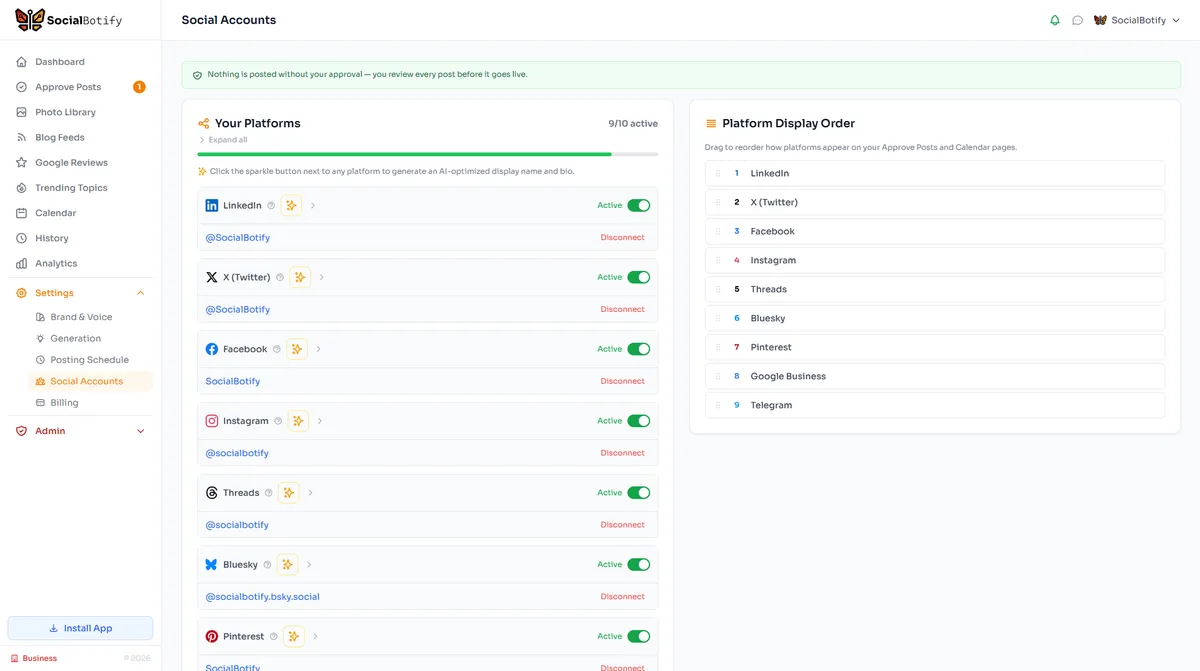
Your Facebook Business Page is live! But a page without regular content won't attract followers. SocialBotify generates engaging posts in your brand voice and publishes them to your Page automatically. Start your free 7-day trial and never worry about what to post again.
Step 9: Upload your profile picture
Your profile picture is the small circular image that appears next to your Page name everywhere on Facebook — in search results, on posts, in comments, and in messages. It's your brand's "face" on the platform.
Click on the circular placeholder where the profile picture should be (or click "Add Profile Photo"). Then select an image file from your computer.
Profile picture requirements:
- Minimum size: 170 x 170 pixels (Facebook will crop it into a circle)
- Best choice: Your business logo on a clean background
- File format: JPG or PNG
- Keep it simple: It displays quite small, so avoid text-heavy images
After selecting the file, you can drag to reposition it within the circle. Click "Save" when you're happy with it.
Step 10: Upload a cover photo
The cover photo is the large banner image at the top of your Page. It's the first thing visitors see, so make it count.
Click "Add Cover Photo" at the top of your Page. Then select an image from your computer.
Cover photo requirements:
- Recommended size: 820 x 312 pixels on desktop (displays at 640 x 360 on mobile)
- File format: JPG or PNG (under 100 KB loads fastest)
Ideas for your cover photo:
- A high-quality photo of your product or service in action
- Your team or storefront
- A branded graphic with your tagline
- A seasonal promotion or upcoming event
After uploading, you can drag to reposition the image. Click "Save Changes" to confirm.
Tip: You can change your cover photo anytime — many businesses update it seasonally or for special promotions.
Step 11: Add your business details
Now let's fill in the details that help customers find and contact you. Click "Edit Page Info" (you'll find it in the left-side menu or under the "More" dropdown below your cover photo).
Fill in as many of these fields as apply to your business:
- Website: Your full URL (e.g., https://www.yourbusiness.com)
- Phone number: A number customers can reach you at
- Email: Your business email address
- Address: Your physical location (if you have a storefront or office visitors can come to). If you're an online-only business, you can skip this.
- Hours of operation: Click "Add Hours" and set your opening and closing times for each day of the week
- Price range: Select a price range indicator ($ to $$$$) so visitors know what to expect
Click "Save" after entering your information. The more complete your profile, the more trustworthy your Page appears to visitors.
What you'll see: A form with multiple tabs (Contact, Location, Hours) where you enter your business information.
Step 12: Create your page username
A username gives your Page a clean, easy-to-share URL. Instead of a long string of numbers (facebook.com/pages/1234567890), you get something like facebook.com/YourBusinessName.
Here's how to set it:
- Go to your Page and click "Settings" (in the left menu or the gear icon)
- Find "General" settings
- Look for "Username" and click "Edit"
- Type in your desired username
Username tips:
- Keep it short and recognizable (e.g., @JoesPizzaNYC)
- Use your business name or a close variation
- Avoid random numbers or underscores if possible
- Usernames must be at least 5 characters long
- If your preferred name is taken, try adding your city or a short modifier
Click "Save Changes" once you've chosen a username. You can now share your Page as facebook.com/YourUsername on business cards, your website, and other marketing materials.
Step 13: Add a Call-to-Action button
The Call-to-Action (CTA) button sits prominently below your cover photo. It's one of the first things visitors notice, so choose an action that aligns with your business goals.
Click "Add Button" (you'll see it below your cover photo, next to the Like and Share buttons).
Popular CTA options:
- Contact Us — for service-based businesses that want inquiries
- Shop Now — for e-commerce businesses
- Book Now — for appointment-based businesses (salons, consultants, etc.)
- Learn More — to send visitors to your website
- Send Message — to encourage direct conversations via Messenger
- Call Now — for businesses that prefer phone communication
- Sign Up — for businesses that want email list subscribers
After selecting your CTA type, Facebook will ask you to enter a link (for example, your website URL or booking page). Fill it in and click "Save".
What you'll see: A dropdown menu with various button options, followed by a field where you enter the destination URL.
Step 14: Make your first post
Your Page is set up and looking professional. Now it's time to make your first post so it doesn't look empty when people visit.
Click the "Create Post" box at the top of your Page's timeline (it says "What's on your mind?" or "Write something..."). Type your message and optionally add a photo or video.
Ideas for your first post:
- Introduce your business — "We're excited to be on Facebook! Here's a little about who we are..."
- Share what you do and why it matters to your customers
- Post a behind-the-scenes photo of your workspace or team
- Ask a question to encourage engagement: "What's one thing you wish [your industry] did better?"
Click "Post" to publish it.
After posting, click the "Invite Friends" option to invite your personal connections to like your new Page. This gives you an initial audience to start with.
What you'll see: A text box with options to add photos, videos, feelings, and more. After posting, it appears on your Page's timeline.
Optimize your Page for maximum reach
You've built the foundation. Now let's make sure your Page stands out from the millions of others. These optimizations help you appear in more searches and convert more visitors into followers.
Perfect your About section
Go to the "About" tab on your Page and fill in every available field. Write a longer description (up to 255 characters for the short bio, and much more in the "Additional Information" section). Include relevant keywords your customers might search for. Mention your location, specialties, and what makes you different from competitors.
Fill in all Intro fields
The "Intro" section appears prominently on your Page when visitors land. Click "Edit" on the Intro section and add your website link, your location, your hours, and a short tagline. This information shows up right below your profile picture and gives visitors the key details at a glance.
Pin your best post
Once you have a few posts, "pin" your best one to the top of your timeline. This could be a welcome message, your most popular post, or a current promotion. To pin a post: click the three dots (...) on the post, then select "Pin to Top of Page." Pinned posts stay at the top so every new visitor sees them first.
Add Featured images
Facebook lets you showcase photos at the top of your Page in a "Featured" section. Add 3-9 of your best images — product shots, team photos, event pictures, or customer testimonials with graphics. Go to the "Photos" tab, click "Featured," and select images from your uploads.
Set up the Services section
If you offer specific services, add them to the "Services" tab on your Page. Click "Add a Service" and enter the name, price (or price range), and a short description for each one. This helps potential customers understand exactly what you offer before they reach out.
Add Page roles for your team
If other people help manage your social media, you can give them access without sharing your personal login. Go to Settings > Page Roles and add people by their name or email. You can assign different levels of access: Admin (full control), Editor (can post and respond), Moderator (can respond to comments), or Analyst (can only view insights).
Consistency is the #1 growth factor on Facebook
Facebook pages that post consistently get 2x more engagement than those that post sporadically. SocialBotify writes and schedules your Facebook content — including image captions, thought leadership pieces, and engagement posts — automatically. Start your free trial and let AI handle the hard part.
Frequently asked questions
Everything else you might be wondering about Facebook Business Pages.
Ready to start posting on Facebook?
Let SocialBotify handle your Facebook content. AI writes posts in your brand voice, you review them once a week, and they publish automatically. 5 minutes a week instead of 5 hours.
Start your free trial →7-day free trial · No credit card required · Cancel anytime